
Home Blog

How to Deal with WiFi Issues on Your Laptop (Windows 11)

0
How to fix wifi issue on laptop

In this post, we’re tackling one of the most frustrating tech headaches out there: WiFi issues on Windows 11. If your laptop is acting up and refusing to get you on the web, you’ve come to the right place.

This guide is designed to work for pretty much any laptop running Windows 11. Whether you’ve got an ASUS, Acer, Lenovo, HP, Dell, or a dedicated gaming rig like a TUF, ROG, Nitro, Predator, LOQ, Legion, or OMEN, these steps should get you sorted.

I’ve broken the troubleshooting down into three tiers based on how bad the situation is. We’ll call them Category A, B, and C. The Problem Tiers:

Category A: The Disappearing Act

  • The WiFi icon has completely vanished from your taskbar or settings.

Category B: The Non-Starter

  • WiFi is there, but it’s not working at all.
  • The laptop can’t find a single network nearby.

Category C: The Stubborn Connection

  • You can see the network, but it fails to connect every time.
  • You’re connected, but it says “No Internet,” even though your phone and other gear that connected with the same network are working fine.

To save you some time, here’s the best way to use this tutorial: If you’re in Category A: Start with the Category A steps, then move to B, and finally C if the problem is still being a pest.

If you’re in Category B: Skip straight to Category B, and move to C if it’s still not fixed. If you’re in Category C: You can jump straight to the Category C steps. Alright, let’s get stuck into it! Make sure you follow these steps carefully.

How to Fix a Missing WiFi Icon (Category A)

When we say the WiFi is “missing,” we mean the icon has completely ghosted you—it’s nowhere to be seen in your taskbar, like in the picture below. This usually happens right after you’ve made the jump from Windows 10 to Windows 11.

To get that icon back where it belongs, give these steps a burl:

First up, let’s make sure the icon isn’t just playing hide-and-seek. It might not be an error; it could just be that the shortcut is hidden. Click the pencil icon (Edit quick settings) at the bottom of your screen. Click “Add” and select “Wi-Fi” from the list to pin it back to your menu. (Check the image below to see what I mean).

Once you see it pop up, hit “Done.”

If that didn’t do the trick and the WiFi option isn’t even in the “Add” list, it’s time for Plan B:

1. Go to your taskbar, click the search icon, and type in “Internet Options.” Give that a click to open it.

2. A little pop-up menu will appear. Look for the “Advanced” tab at the top and head over there. Down the bottom, you’ll see a button that says “Restore advanced settings.” Go ahead and click that.

3. Hit “Apply,” then click “OK” to seal the deal.

Once you’ve done that, close any apps you don’t need (you can keep this browser window open, though!) and let’s move straight into Category B.

How to Fix WiFi Networks Not Showing Up (Category B)

If your WiFi icon is there but the laptop acts like there isn’t a single network in the world, give these steps a go:

1. Click on your taskbar search, type “Control Panel”, and open it up.

2. Head into “Network and Internet”.

3. Select “Network and Sharing Center”.

4. Over on the top-left, click the link that says “Change adapter settings”.

5. Find the icon labelled “Wi-Fi”. Right-click it and hit “Enable”. If it’s already enabled, try the old “off and on again” trick. Right-click, hit “Disable”, wait a few seconds, then right-click and “Enable” it again.

6. Close everything and restart your laptop.

If Category A and B still haven’t sorted you out, don’t throw your laptop out the window just yet—we’re moving on to the heavy lifting in Category C.

WiFi Won’t Connect or “No Internet”? (Category C)

This tier is for the stubborn problems. If you’ve tried the Windows troubleshooter and it spat out an error like “experiencing driver- or hardware-related problems,” then this is the fix for you. We’re going to tackle this from the software side by reinstalling your drivers.

Now, here’s the catch-22: You need to download a driver, but your WiFi isn’t working. No worries! You’ve got a few options to get around this:

  • Borrow a mate’s laptop: Download the driver there and move it to your laptop using a USB stick or Bluetooth.
  • Use your phone: Download the file on your smartphone and send it to your laptop via Bluetooth or a cable.
  • USB Tethering: Plug your phone into your laptop via USB and use your phone’s data as a temporary “modem” to get the laptop online.

Now, let’s find the right driver. You need to head to the official website of whoever made your laptop. Don’t go to some dodgy third-party site! You can find what you need on Google by searching:

Driver [Laptop Brand] [Laptop Model Number]

For example, I’m using an ASUS Zenbook UX434FLC. So, I’d head to asus.com, hit the search icon, type in “UX434FLC”, and find the support page for that specific model.

Once you’re on the manufacturer’s product support page, look for a tab that says “Drivers & Tools” (or something similar).

Pick your OS: Make sure you select Windows 11 so you get the right software for your gear.

Find the WiFi Driver: You’ll usually find this under a “Networking” or “Wireless” category. Look for names like “WLAN” or “Wireless LAN.”

Grab the most recent version based on the release date. Sometimes you might need to click “See All Downloads” if the WLAN driver is buried under other networking stuff. Hit “Download” and you’re good to go.

Now, let’s get it installed:

1. Double-click the file you just grabbed. When the setup wizard pops up, just hit “Next.”

2. On the License Agreement page, tick “I accept the agreement” and click “Next.”

3. Tick “Install” and click “Next”.

4. On the “Information” page, click “Next”.

5. Once you’re ready, click “Install”.

6. The install should only take a few seconds. Once it’s done, the most important step is to restart your laptop. Choose “Restart the computer now” and click “Finish.”

After your laptop boots back up, try connecting to your WiFi. With any luck, you should be back online and sorted!

Still Having Trouble? (The Advanced Fix)

If all those steps doesn’t fix the WiFi issue, we need to try a “clean” install. This means deleting the old driver before we install the new one.

1. Type “Device Manager” into your search bar and open it.

2. Look for “Network adapters” and double-click it. Find your WiFi driver—it’ll usually have “WLAN,” “802.11,” or “Wireless AC” in the name. Right-click it and hit “Properties.”

3. Go to the “Driver” tab and click “Uninstall Device.”

4. Once that’s done, go back and follow the installation steps in Category C from step 1 again.

What If Nothing Works?

If you’ve tried everything and your WiFi is still cactus, you might be looking at the “Nuclear Option”: a full factory reset. This is a massive pain because it will wiping all your data and takes heaps of time, but it’s the final software step you can take.

If a factory reset doesn’t do the trick, then it’s likely a hardware gremlin. If you’re a bit tech-savvy, you could try opening up the laptop, popping out the WiFi module, and giving the gold connectors a gentle wipe with a pencil eraser (rubber) to clean off any grit. Or, you can simply swapping out the WiFi module with the new one. And hey, this step is doable without factory reset.

But if you’re not comfortable poking around inside, don’t risk it. Take it to a local repair shop or, if it’s still under warranty, give the manufacturer a buzz and lodge a claim. Hope this gets you back on the web! 🙂

Intel’s New Naming Mess: Core i7 vs. Core 7 vs. Core Ultra 7 – What’s the Go?

0
difference between intel core and intel core ultra

If you’ve clicked on this post, chances are you’re staring at a spec sheet and feeling completely stumped. You’ve got the Intel Core i7, the Intel Core 7 (where’d the ‘i’ go?), and the Intel Core Ultra 7.

Honestly? Don’t stress. It’s a total head-scratcher, and even the tech experts had to do a double-take when Intel announced this. The branding is, frankly, a bit of a dog’s breakfast right now.

My goal today is to break this down as simply as possible so you can actually figure out what’s the difference between Intel Core i7, Intel Core 7 (without the ‘i’), and Intel Core Ultra 7, and which CPU belongs in your next rig or laptop. No heavy jargon—just the facts you need.

A quick heads-up: even though I’ve simplified this, it’s still a bit of a maze. If I’ve missed a detail or you reckon something’s changed, chuck a comment down below!

Intel Core i vs Intel Core (without “i”) vs Intel Core Ultra: What’s the Difference Between Them? Which is Better?

difference between intel core and intel core ultraThe confusion kicked off with the 14th Gen. Initially, Intel decided they wanted to phase out the famous “i” (i3, i5, i7, i9) for their mobile (laptop) chips. In its place, they introduced the “Series 1” processors. So, while desktops kept the classic 14th Gen “Core i” names, laptops moved into this new territory.

Here’s the breakdown for Series 1:

Intel Core (The “Just Core” Series): Think of these as the successors to the battery-saving “U-series” chips. If it doesn’t have an “i” and doesn’t say “Ultra,” it’s likely a standard, power-efficient laptop chip.

Intel Core Ultra: This is where things get fancy. The “Ultra” tag means the chip comes with an NPU (Neural Processing Unit). This is a dedicated bit of hardware specifically for handling AI tasks efficiently.

In short:

  • Intel Core (Series 1): Laptop only, power-efficient, no NPU.
  • Intel Core Ultra (Series 1): Laptop only, has an NPU for AI, comes in “U” (efficient) and “H” (high performance) versions.

But wait, what about gaming laptops? This is just my assumption, where maybe Intel realised the “Ultra H” series wasn’t quite beefy enough for hardcore gaming laptops. And maybe that’s why Intel decided to release the Intel Core i CPUs for laptops later on. But this time, the Core ‘i’ is only available in the HX series. And the HX series is pretty much the highest performance version for laptop CPUs.

So, they kept the Core i7/i9 HX series alive for high-end laptops. These are absolute power-hungry beasts (up to 157W!) compared to the Ultra H (max 115W).

Moving to Series 2: The “i” is Officially Dead

Now, we move into the current era: Series 2. As of now, the “i” branding has been officially put out to pasture for new releases. In Series 2, we have two main paths:

1. Intel Core (The Standard)

Available only for laptops. These are your workhorse chips for mainstream users. They still do not have an NPU. You’ll find them in “U” (efficiency) and “H” (performance) flavours.

2. Intel Core Ultra (The AI Powerhouse)

This is available for both laptops and desktops. And if you’re looking at the Mobile (Laptop) versions, it gets even more specific:

  • Intel Core Ultra Series U: Mainstream efficiency.
  • Intel Core Ultra Series V : This one’s a total efficiency champ, built on a brand-new architecture designed for “thin and light” premium laptops. They are incredibly battery-efficient.
  • Intel Core Ultra Series H: More powerful CPU and Graphics (GPU) than the V-series, but slightly less efficient on the AI side.
  • Intel Core Ultra Series HX: The top of the food chain. This is for full-blown gaming laptops. It has massive CPU power, though it relies on a separate (dedicated) graphics card for the heavy lifting.

What’s the difference between Intel Core Ultra U, V, H, and HX series? Let’s start by comparing the Intel Core Ultra U and V series. First up, the U-series uses architecture that’s pretty similar to the previous generation Intel Core Ultra. Meanwhile, the V-series uses a totally new architecture, specifically focused on getting even better battery life.

Second, regarding the NPU. The NPU in the U-series only hits a maximum of 12 TOPS. Whereas the NPU in the V-series hits up to 47 TOPS for the Intel Core Ultra 7, and up to 48 TOPS for the Intel Core Ultra 9.

Third difference, the integrated GPU in the V-series is way faster than the one in the U-series. Meaning, the V-series is much better for running tasks that need high graphics capability. At the same time, this makes AI processing capability much higher too, with a comparison of:

  • The U-series only hits a max of 24 TOPS when combining CPU, NPU, and GPU power.
  • Whereas the V-series hits a max of 115 to 120 TOPS when combining CPU, NPU, and GPU power.

So, that’s a massive difference.

Now, moving on to the Intel Core Ultra H-series. You could say this is the more powerful series compared to the V-series, especially in terms of raw CPU and integrated GPU power. However, in terms of battery life and NPU, the V-series is still the champion.

Because the NPU in the H-series isn’t much different in processing power compared to the U-series, only hitting about 13 TOPS. Even though it’s got higher performance, the H-series power consumption isn’t too thirsty. The TDP for the H-series is 28 to 115 watts.

So, the H-series is pretty flexible. You can use it in a gaming laptop, or in a premium non-gaming laptop too. Now, how does it compare to the (non-Ultra) Intel Core H-series? On paper, the Ultra H-series wins across the board compared to the non-Ultra H-series. From CPU performance, iGPU, power efficiency, and of course, the Ultra has an NPU built-in, even if it’s not that powerful.

So, you could say the Intel Core H-series (non Ultra) only wins on price. Meaning, it can be paired with cheaper gaming laptops.

And finally, on to the Intel Core Ultra HX-series. Now this is the top tier, specifically for CPU performance. This processor runs at a TDP of 55 to 160 watts. And for sure, it’ll be fitted in full-power gaming laptops.

Even though the NPU performance is capped at 13 TOPS, and the integrated GPU is only on par with the U-series, that’s definitely not an issue. Because premium-class gaming laptops will definitely be paired with a powerful discrete GPU.

So, graphics and AI tasks can be taken over by the discrete GPU. Even though in terms of power consumption, it’s obviously way thirstier if AI processing is handed over to the discrete GPU.

Let’s Talk TOPS (The AI Speedometer)

You’ll hear the word TOPS (Trillions of Operations Per Second) a lot now. It’s basically how we measure AI performance. Intel Core Ultra Series U/H/HX, usually sit around 12-13 TOPS on the NPU. While Intel Core Ultra Series is the overachiever, hitting up to 47-48 TOPS on the NPU alone.

If you combine the CPU, GPU, and NPU, the Series V can hit a massive 120 TOPS, making it way better for AI tasks than the Series U, which only hits about 24 TOPS.

The Cheat Sheet: Which one do you need?

If your brain is starting to smoke, here is the “too long; didn’t read” version:

Essentially, Core Ultra is the future, Core (no ‘i’) is the new budget/mainstream standard, and Core i is the legacy name that’s slowly fading away. To put it simply, the Intel Core “i” series has reached its finish line at the 14th Gen. Even then, it’s a bit of a niche—you’ll only find 14th Gen “i” chips in desktop PCs or high-end gaming laptops.

This means if you’re looking at a standard, non-gaming laptop, the 14th Gen “i” doesn’t actually exist. Instead, your options are the Intel Core (the one without the ‘i’) Series 1 or the Intel Core Ultra Series 1.

Moving forward into the 15th Gen, the “i” is officially dead and buried. It’s been completely replaced by the Intel Core Series 2 and Intel Core Ultra Series 2. So, you can pretty much think of the Series 2 as the spiritual successor to the 15th Gen.

The standard Intel Core (no “i”) is designed specifically for laptops. It doesn’t come with an NPU (so no dedicated AI hardware) and is split into two categories:

  • The U-Series: Built for your everyday, mainstream laptops.
  • The H-Series: Aimed at more budget-friendly gaming laptops.

On the other hand, the Intel Core Ultra is the premium choice for both desktops and laptops, and it comes fully loaded with an NPU. For laptop users, the Ultra series is broken down into four distinct paths:

  • Intel Core Ultra Series U: The power-saver for daily tasks.
  • Intel Core Ultra Series V: The absolute king of efficiency. It’s even better on battery life and packs a significantly more powerful iGPU (integrated graphics) and NPU.
  • Intel Core Ultra Series H: Offers higher CPU and iGPU performance for those who need more grunt, without being a total battery hog.
  • Intel Core Ultra Series HX: The big guns. This is all about maximum CPU performance for top-tier, full-power gaming laptops.

Hopefully, this clears the air! If you found this helpful, feel free to share it with a mate who’s also scratching their head over their next upgrade. So what do you think? Which one suits you best?

What’s the Go with OLED Screens? The Good, the Bad, and the Ugly!

0
Pros & Cons of OLED Screens

Over the last few years, we’ve been seeing more and more laptops popping up with OLED panels as their main selling point. Even in the smartphone world, plenty of brands are chucking AMOLED screens onto their mid-range and budget phones. It’s certainly got a lot of people keen.

OLED and AMOLED are definitely eye-catching. You’ve got some shoppers who wouldn’t touch a phone with a barge pole if it didn’t have an AMOLED screen. On the flip side, you’ve got others who avoid them like the plague when buying a new laptop or phone. These two camps are always at each other’s throats—it’s like the great Aussie debate over how much Vegemite you should put on your toast!

Basically, it’s a battle between the fans who love the perks of OLED and the sceptics who are worried about the downsides. So, I figured it was time to write a proper breakdown of the pros and cons of OLED and AMOLED. Hopefully, this helps you decide whether you should jump on the bandwagon or steer clear.

OLED vs. Standard LCD: What’s the Difference?

Pros & Cons of OLED ScreensFrom here on out, I’ll just call it OLED, since AMOLED is basically built on the same tech. To kick things off, we need to look at how an OLED panel actually works compared to a standard LCD (which includes IPS and TN panels).

We know that every screen on a laptop or phone is made up of millions of pixels. (If you’re not sure what a pixel is, have a squiz at my previous post where I explain it).

Think of it like this: In a standard LCD, each pixel can change its colour, but it can’t actually create its own light. Because of that, LCDs need a “backlight” tucked behind the screen to make everything visible.

What happens if there’s no backlight? You won’t see a thing because it’ll be pitch black. It’s like trying to look at a colourful piece of paper in a dark room—no matter how bright the colours are, you can’t see them without a torch.

OLED is a completely different beast. The special thing about an OLED panel is that every single pixel creates its own light. It doesn’t need a backlight to show off its colours. In other words, every pixel is like a tiny individual light bulb that can turn on, turn off, and change colour all by itself.

It’s this fundamental difference that gives OLED and AMOLED some massive advantages over your typical IPS or TN LCD panels.

Advantages of OLED Screens

Because of the way OLED works, one of the biggest wins is how much battery juice it can save you—especially if you’re a fan of dark themes.

1. Better Battery Life

Since every pixel is its own light source, when the screen needs to show a dark colour, those pixels just dim down. But here’s the kicker: if the screen needs to show true black, those OLED pixels literally turn themselves off. Completely.

Still trying to wrap your head around it? Let’s look at how we use our gear every day. Most apps these days have a “Dark Mode”, right? When you flick that switch, the background goes dark or black, and only the text and images stay bright.

For someone with an OLED screen, Dark Mode is an absolute ripper for saving battery. Because most of the screen is black, a huge chunk of those pixels are just “sleeping” and not drawing any power at all. Only the bits showing text or pictures are actually working. Less pixels firing away means less strain on your battery.

Compare that to a standard IPS or LCD panel. On those screens, even if you’re looking at a completely black image, the big “torch” (the backlight) behind the screen has to stay on to illuminate everything. Whether the screen is showing a white document or a dark movie, it’s using pretty much the same amount of power. The only way to save battery on an LCD is to turn down the overall brightness.

Another great example is the Always-On Display (AOD). You know how some phones show the time and date even when they’re locked? On an OLED screen, this barely touches your battery because only the tiny pixels forming the numbers are turned on. The rest of the screen stays pitch black and power-free.

That’s why you’ll mostly see Always-On Displays on OLED devices—it just makes sense. On an LCD, trying to do that would be a total battery killer.

2. Punchier Colours and “Inkier” Blacks

The tech we just talked about leads us straight into the second big win for OLED: incredible contrast and blacks that are actually black. This makes the whole screen look heaps sharper and more “high-def.”

Because every pixel can brighten, dim, or shut off entirely on its own, the difference between colours in a single frame is massive. When you’re watching a movie with a night scene, the black parts are truly black because those pixels are literally powered down.

Compare that to an LCD panel, where the backlight has to stay on even when the screen is trying to show black. That’s why blacks on an LCD often look a bit “washy” or dark grey. You’re seeing the light “bleeding” through the pixels, which ruins that deep, cinematic look.

3. More Vibrant, Richer Colours

Since OLED pixels have so much freedom, they can produce a much wider range of colours. Darker shades that an LCD would struggle to show are a piece of cake for an OLED. This makes the whole experience way more “eye candy” and pleasant to look at.

But a quick heads-up: just because it can show more colour doesn’t mean it’s always 100% accurate out of the box. Accuracy depends on how the manufacturer calibrates the screen. That’s why you’ll see fancy labels like “PANTONE Validated.” If you see that, it means the colours have been tested to make sure they’re spot on and true to life, rather than just being super bright and over-the-top.

4. Thinner and Bendy

Because OLED doesn’t need that extra backlight layer, the whole screen assembly is much thinner. This lets manufacturers slim down their laptops and phones even more.

On top of that, OLED panels are actually quite flexible—almost like a sheet of plastic. This is what allows for those “curved” displays or the fancy folding phones like the Samsung Galaxy Flip or Fold. You just can’t do that with a stiff old LCD panel!

5. Snappy Response Times

OLED panels are also famous for being incredibly snappy when it comes to response times. Basically, every pixel can flip colours way faster than your average LCD. You’ll really notice this when you’re doom-scrolling through social media—it looks smooth as butter because there’s almost zero motion blur. This means everything stays sharp and detailed, even when things are moving fast.

This is a massive drawcard for gamers, too. The faster the response time, the crisper the action looks on screen. Plus, having less motion blur helps heaps if you’re the type who gets a bit queasy or gets a headache during fast-paced games.

Disadvantages of OLED Screens

As much as OLED sounds like the bee’s knees, it’s not all sunshine and rainbows. There are a few downsides that make people think twice before splashing their cash on a device with an OLED screen.

1. It’ll Cost You an Arm and a Leg

Because the tech is newer and trickier to manufacture than old-school LCDs, it comes with a hefty price tag. For some mid-range phones, a screen replacement can sometimes cost nearly half the price of a brand-new handset.

Obviously, the bigger the screen and the higher the resolution, the more you’re going to pay. But generally speaking, an OLED panel can be twice as expensive as an LCD. This means if you accidentally drop your gear and crack the screen, you’re going to need pretty deep pockets to get it fixed. This is usually the main worry for folks looking to make the switch.

2. The Dreaded “Burn-In” (or Ghost Images)

Easily the most famous headache with OLED screens is the risk of “burn-in”, or what some people call “shadowing.” This is when an image, an icon, or even text gets permanently “stuck” on your screen. Even when you change what you’re looking at, you can still see a faint “ghost” of the old image hanging around.

This usually happens because certain pixels get “worn out” from showing the exact same static image for way too long, especially if you’ve got the brightness cranked up to the max.

When I say “static image,” I mean things that don’t move—like your app icons on the home screen or the taskbar on your laptop. If they’re sitting there day in and day out, they can leave a mark.

Usually, this isn’t something that happens overnight; it typically pops up after about two years of heavy use. But it really depends on your habits. It could happen sooner if you’re not careful. Remember, the enemy here is static images! If you’ve got an OLED, you want to avoid leaving the same thing on the screen for hours on end.

I’ve actually got a few personal habits to keep my screens “burn-in free.” First, I’m quick to lock my phone or laptop the second I’m done using it. No point leaving the screen firing away if I’m not looking at it.

Secondly, on my OLED laptop, I keep a completely black image file handy. If I’ve been working on the same app for a long stretch, I’ll open that black image in full-screen mode for a bit. Since black pixels on an OLED are actually “off,” it gives the screen a well-earned rest.

I also use this trick if I have to go AFK (away from keyboard) for a few minutes but want to keep the laptop running. The laptop stays on, but the pixels get a nap.

Now, you might have heard a rumour that you can “fix” burn-in by displaying a bright white screen for hours on end. The idea is that you “cook” the rest of the pixels to even out the wear and tear. I can’t vouch for whether this actually works or if it just makes things worse. So, if you decide to give that a whirl, it’s completely on your own head!

3. Colour Fading Over Time

If you’re the type to leave your screen on for ages at a time, there’s a risk that the OLED panel will start to lose its “sparkle.” Over the years, the colours can start to fade or shift. This usually happens because the blue sub-pixels have a shorter lifespan than the others.

Now, this mostly happens if you’re constantly flogging the screen at max brightness. In reality, you probably won’t notice this until years down the track—by which time you’ve likely saved up for a new upgrade anyway.

If you’re planning to keep your gear for a “short” stint (say, four years or less), I wouldn’t lose any sleep over this. But if you’re the type who wants their laptop or phone to last five to ten years, it’s a factor worth considering.

4. The “Light Saber” Risk

You might have heard about the infamous “light saber” effect on AMOLED smartphones. It’s those dodgy vertical lines (usually green or white) that suddenly appear out of nowhere. So far, this seems to be a much bigger headache for phones than for laptops.

Most folks reckon this happens because phone designs are so cramped that heat from the internals messes with the screen. That’s why you’ll often hear stories of a “light saber” appearing right after a major system update—the phone’s “engine” is working overtime, getting toasty, and potentially triggering the fault.

So, Which Team Are You On?

There’s no denying that OLED and AMOLED screens are absolute eye candy. I’ll be honest—I’m a huge fan. I remember the first time I went from an OLED laptop back to a standard IPS one; the IPS screen looked totally washed out and “pale” by comparison.

Mind you, once your eyes adjust back to the IPS, it’s actually not bad at all. It’s just that OLED is that good.

On the other hand, the risks that haunt OLED can make you think twice. Is the risk worth the reward? Do you actually need an OLED?

To help you decide, here’s my take:

  • The Creative Pro: If your job depends on visuals—like photographers, designers, or video editors—an OLED screen is a fair dinkum investment. Just make sure the boost in your work quality pays for itself before the screen’s lifespan is up!
  • The Budget-Conscious: If you’re worried about repairs or want something that’ll last a decade without a worry, there’s no shame in sticking with IPS. It’s far from “rubbish” and is still a bloody good experience for daily use.
  • The Tech Lover: If you’ve got the spare cash and want the best visual experience possible right now, go for it. Treat your eyes!

At the end of the day, it’s all about what suits your lifestyle and your wallet. Hopefully, this breakdown makes your next upgrade a bit easier!

Why Does Overheating Cause a Decrease in Performance for Phones and Laptops?

0
Why Phones and Laptops Overheat During Gaming

Why Does Your Gear Chug When It Gets Toasty? Thermal Throttling Explained – Look, we all know that gaming laptops aren’t just about the flashy RGB lights and aggressive designs. One of the biggest wins they have over regular laptops is how they handle heat.

As I’ve mentioned before, when things get too hot, your FPS (frames per second) will start to tank. It happens on laptops, and it definitely happens on smartphones too. So, why does a bit of extra heat mess with your performance? Let’s break it down in plain English.

Performance Drops When Things Get Hot

If you’ve been gaming for a while, you’ll know this is a fairly standard headache. It doesn’t matter what brand you’re using. Once the device gets too hot, the performance starts to slide.

As I explained in my last post about why phones or laptops heat up during gaming, running a modern game is a massive job. If a game has high-end graphics, it requires a serious amount of grunt from your phone or laptop to keep those frame rates smooth.

Because the CPU and GPU—the “brains” of your device—are being pushed to the limit, they start to generate a lot of heat. If the system reckons the temperature is getting a bit too risky, it automatically throttles (slows down) the performance to stop things from melting. The result? Your game starts lagging, and your smooth experience goes out the window.

Safety First (Literally)

Leaving a device to run scorching hot for too long is bad news. If it stays at those high temps, the sensitive bits around the CPU and GPU could actually get damaged, or in extreme cases, the battery could even become a fire hazard. It’s a serious business!

Plus, from a user’s perspective, no one wants to hold a phone that feels like a hot pie fresh out of the oven. That’s why your device pulls back on the power—it’s trying to protect the hardware and make sure you don’t burn your hands.

The Bottom Line

This is why a solid cooling system is a no-brainer for any gaming rig. There’s absolutely no point in having the latest high-end CPU and GPU if the cooling is rubbish. Your performance will just “choke” after ten minutes of play, and you’ll be left with a very expensive, very warm paperweight.

Invest in good cooling, and your frame rates will thank you for it!

Why’s My Gear Running Hot? Why Phones and Laptops Overheat During Gaming

0
Why Phones and Laptops Overheat During Gaming

I reckon we’ve all been there—you’re mid-game and notice your laptop or smartphone is starting to feel like a barbie in the middle of a January heatwave. Sometimes it’s just a bit warm, but other times you feel like you could literally fry an egg on it.

Don’t stress; it doesn’t usually mean your device is broken. Most of the time, it’s actually pretty normal. In this post, I’ll explain in plain English why our gear heats up when we’re gaming.

Why Phones and Laptops Overheat During Gaming

Why Phones and Laptops Overheat During GamingAs most of us know, running a game is a massive job. Your device has to display a constant stream of moving graphics, and the more frames it pushes out, the smoother your game feels. Because of that, your hardware is trying its absolute heart out to produce as many images as possible, as fast as it can.
The catch? Producing those graphics requires a huge effort from the main components—the CPU and GPU. They need heaps of electrical power to keep up with the demand.

Think of it like being forced to run a marathon at full tilt—your body is going to get hot. It’s the same with your phone or laptop. When they’re working overtime on a game like PUBG (PC or mobile), that heat buildup happens fast.

Safe Within Reasonable Limits

On a laptop, you’ll often hear the fans spinning up like a jet engine when you’re playing something intensive. This is totally normal! The fan’s whole job is to get rid of the heat generated by the hardworking CPU and GPU. Even a high-end gaming laptop with fancy cooling will still feel warm to the touch.

The same goes for your phone. If it feels like it’s got a bit of a mild fever, it’s generally fine. But if the surface starts getting scorching—exceeding 50°C—then it’s time to be a bit careful.

Other Factors at Play

If you find your gear is overheating way too fast, there might be a few other things going on. Some Android smartphones are notorious for running hot simply because of the chipset they use. If you’ve got one of those, it’s not really a “fault”, it’s just how the chip was built.

Similarly, with laptops, this issue can be found a lot with older laptops, particularly those using older-gen chips. Thankfully, with newer stuff like the Ryzen 4000 series and above, this isn’t nearly as much of an issue. If you missed it, check out my previous post on how to tell your Intel and AMD generations apart!

Now, let’s talk about room temperature. Believe it or not, the temperature of the room you’re in makes a massive difference. If you’re gaming in a room with no aircon in the middle of summer, your device is going to struggle. So, don’t underestimate its impact!

Finally, there are a few “no-nos” specifically for laptops that you should avoid if you want to keep them from melting. I’ll be covering those in my next post!

Easy Ways to Check Intel and AMD Processor Generations

0
Intel and AMD Processor Generations

We all know that right now, there are two household names in the world of processors: Intel and AMD. These two have been the major players competing for a long time, constantly churning out new products. Both giants have their flagship lines that are highly sought-after by PC builders and laptop buyers alike—namely, “Intel Core i” and “AMD Ryzen“.

Both of these product lines are further divided into different tiers. For Intel, you’ve got the Intel Core i3, i5, i7, and i9. It’s a similar story with AMD, which is split into the AMD Ryzen 3, 5, 7, and 9.

What many folks don’t realise is that both flagships have different “generations” that vary in performance. Usually, the newer the generation, the better it performs compared to the previous one. In the case of AMD Ryzen, the leap can be quite significant; for instance, the Ryzen 4000 series offers much better capability and efficiency than the older Ryzen 3000 series.

Prices vary quite a bit too. That’s why it’s important to know the generation of the processor you’re eyeing off, so you don’t end up disappointed later. Checking it is actually pretty straightforward, and I’ll break it down simply for you here.

How to Identify Intel and AMD Processor Generations

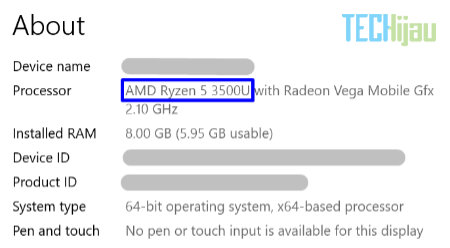
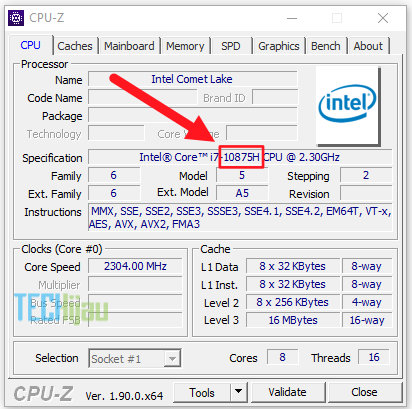
You can easily tell the generation of a processor just by looking at its model code. If you look closely, every processor sold (whether it’s a standalone component or built into a laptop) has a series number after its name. For example, the Intel Core i3-8130U or the AMD Ryzen 5-3500U. Here is how you read those codes:

Cara mengetahui generasi prosesor AMD Ryzen

The leading digit “8” in the Intel Core i3-8130U indicates the generation. This means it is an 8th Generation Intel Core i3. Meanwhile, the “3” in the AMD Ryzen 5-3500U shows that it belongs to the AMD Ryzen 3000 series. Yep, it’s that easy.

So, if you see a laptop with an Intel Core i3-6006U, that’s a 6th Gen Intel Core processor. Or if you see a laptop with an AMD Ryzen 5-4500U, that’s an AMD 4000 Series processor.

Furthermore, the letter at the very end of the series number indicates the “power type” of the processor. In the examples above, all of them end with a “U”. This stands for “Ultra Low Power” (ultra-efficient). You’ll usually find these in mainstream and premium laptops. They’re designed this way so the laptop’s battery doesn’t drain too quickly.

Even though they’re called “Ultra Low Power,” they still handle light tasks perfectly well and offer fast loading times. They’re a great fit for office workers or everyday activities that don’t require heaps of power.

On the other hand, high-performance processors will have an “H” suffix, which stands for “High Performance”. These chips are typically used for gaming or heavy-duty editing that requires visual effects or 3D rendering, like running Adobe After Effects or Blender.

Cara mengetahui generasi prosesor Intel

In a laptop, you’ll mostly find these “H” types in gaming laptops. The trade-off, of course, is that the battery won’t last nearly as long. I’ve covered this more in my post about the differences between gaming laptops vs. regular laptops.

What about Intel Core (without “i”) and Intel Core Ultra?

Currently, we’re also being introduced to Intel’s latest processor range: the Intel Core (without the ‘i’) and the Intel Core Ultra. These chips are the official successors to the classic Intel Core i series, which is now pretty much a thing of the past. I’ve already broken down everything you need to know about these new processors in my other post: The Difference Between Intel Core vs Intel Core i vs Intel Core Ultra.

How to Check Your Processor Generation on Your Own PC or Laptop

Intel and AMD Processor GenerationsIf you already own a PC or laptop and want to see what’s under the hood, it’s a breeze. If you’re running Windows 10, just go to the search bar (next to the Windows icon in the bottom left corner) and type in “Device Specification”. Click on that, and your laptop will display the name and model of the processor you’re using.

Pretty easy, right? I hope this helps you out! 🙂

Mapping the Performance Level of Smartphone Processors (October 2023)

0
Phone Processor Rankings

Mapping the Performance Level of Smartphone Processors (October 2023) – Since smartphones began to become one of the basic needs for society, more and more people are realizing that it is important to consider performance when buying a new phone.

Especially if we already realize that big RAM is not the main accurate benchmark for estimating the performance of a smartphone. Because in fact, the main factor that has the greatest influence on the performance of a smartphone is from the side of the SoC (System on Chip), or also known as the “processor”.

Usually, those who want to experience a better gaming experience, will be stricter in choosing a new phone based on the SoC it uses. And it is almost certain that they will tend to choose phones that have the highest performance SoC (processor), for the budget that has been provided.

Now, to help you choose the latest Android phone based on the performance of the processor it uses, in this article, I want to share a list alias list of performance rankings of each processor that is popularly used on Android phones today. I will continue to update this article if there is the latest data coming in (update: October 2023).

Mobile Phone Processor Ranking Based on Performance

Phone Processor RankingsThe list of processor performance rankings for phones that I wrote here is made based on data from AnTuTu benchmark v10. Which is the most popularly used performance benchmark app. And the determination of the tier refers to testing the CPU and GPU performance of each SoC.

I need to remind you that higher processor performance ratings may only feel better when used for gaming. But for daily use, maybe we will not be too able to feel a significant difference.

Even so, we still can’t compare between flagship-class processors with entry-level classes. Because the difference will obviously be felt on all fronts.

On the other hand, a higher-ranking processor doesn’t guarantee that the experience will feel better for multitasking. Because for this one case will depend on the optimization of the software used on each smartphone.

And I also need to emphasize that phones that use the better processor, will only be superior in terms of performance. And not necessarily will have a better quality and better user experience. Always remember that actually choosing a smartphone is not always about judging from the processor side. Not everyone needs to buy a smartphone to play games after all.

Well, let’s start the list of performance levels of mobile processors for now, starting from the SoC with the highest performance rating first. Please read the additional notes at the bottom of the list for details of this ranking.

  1. MediaTek Dimensity 9200 Plus
  2. Snapdragon 8 Gen 2
  3. MediaTek Dimensity 9200
  4. Snapdragon 8 Plus Gen 1
  5. Snapdragon 8 Plus Gen 1 UC
  6. MediaTek Dimensity 9000 Plus, equal to Snapdragon 8 Gen 1
  7. MediaTek Dimensity 9000
  8. Snapdragon 7 Plus Gen 2
  9. Exynos 2200
  10. MediaTek Dimensity 8200
  11. Snapdragon 888 Plus
  12. MediaTek Dimensity 8100
  13. Snapdragon 888
  14. Kirin 9000S
  15. Kirin 9000, equal to MediaTek Dimensity 8000
  16. Kirin 9000E
  17. Snapdragon 870 5G, equal to Exynos 2100
  18. Snapdragon 865 Plus
  19. MediaTek Dimensity 1300
  20. MediaTek Dimensity 1200
  21. Snapdragon 865 5G
  22. MediaTek Dimensity 1100, equal to Exynos 1080
  23. Exynos 990
  24. MediaTek Dimensity 1000 Plus
  25. Snapdragon 782G
  26. Snapdragon 855 Plus
  27. Snapdragon 778G Plus
  28. Snapdragon 7 Gen 1
  29. Snapdragon 855
  30. Snapdragon 780G, equal to MediaTek Dimensity 1000L
  31. Kirin 990 (5G)
  32. Snapdragon 778G, equal to Exynos 9820 & Exynos 9825
  33. Kirin 990 (4G)
  34. Kirin 990E
  35. Kirin 980, equal to MediaTek Dimensity 820
  36. Snapdragon 845, equal to MediaTek Dimensity 1080
  37. Kirin 820 5G, equal to MediaTek Dimensity 900
  38. Snapdragon 768G 5G
  39. Exynos 9810, equal to Snapdragon 695 & MediaTek Dimensity 930
  40. Snapdragon 765G 5G
  41. Snapdragon 750G 5G, equal to Exynos 980 & MediaTek Dimensity 800U
  42. Snapdragon 4 Gen 1
  43. Snapdragon 720G, equal to MediaTek Dimensity 800
  44. Snapdragon 732G
  45. Snapdragon 730G, equal to MediaTek Helio G95
  46. Snapdragon 480 Plus
  47. Snapdragon 480 5G
  48. Snapdragon 835, equal to Exynos 880
  49. MediaTek Helio G90T MT6785T
  50. MediaTek Dimensity 720
  51. MediaTek Dimensity 700
  52. Snapdragon 690 5G
  53. Snapdragon 712, equal to Exynos 8895 & Kirin 970
  54. Snapdragon 675
  55. Snapdragon 710
  56. Snapdragon 821
  57. Snapdragon 680, equal to MediaTek Helio X30
  58. Snapdragon 670, equal to Kirin 960
  59. Snapdragon 820
  60. Snapdragon 660, equal to Exynos 9611 & MediaTek Helio P90
  61. MediaTek Helio P70 MT6771T
  62. MediaTek Helio G85 MT6769V
  63. MediaTek Helio G80 MT6769T
  64. Snapdragon 662, equal to MediaTek Helio P65 MT6768
  65. Snapdragon 665, equal to MediaTek Helio G70 MT6769 & Kirin 710
  66. Snapdragon 636, equal to Exynos 9610, Kirin 950 & MediaTek Helio P60 MT6771
  67. Snapdragon 460
  68. Snapdragon 653
  69. Snapdragon 632, equal to Exynos 7885
  70. Snapdragon 652, equal to Exynos 7420
  71. Snapdragon 650
  72. Snapdragon 626, equal to Exynos 850
  73. Snapdragon 630, equal to Exynos 7904 & MediaTek Helio X25
  74. Snapdragon 810
  75. MediaTek Helio G35 MT6765G
  76. Snapdragon 625, equal to dengan MediaTek Helio X20 MT6797
  77. Kirin 65x, equal to Exynos 7880 & MediaTek Helio G25 MT6762G
  78. Snapdragon 439, equal to MediaTek Helio P25
  79. Snapdragon 808, equal to Exynos 5433
  80. MediaTek Helio P20
  81. Snapdragon 450, equal to Exynos 7870 & MediaTek Helio P22
  82. Snapdragon 801
  83. Snapdragon 435, equal to MediaTek Helio P10
  84. Snapdragon 430
  85. MediaTek Helio A22 MT6761, equal to Exynos 7580 & Snapdragon 617
  86. MediaTek MT6750
  87. Snapdragon 425, equal to Exynos 7570

NOTES :

  • The list is based on AnTuTu benchmark v10 scores.
  • There may be some inaccurate SoC ratings for ranking 20 and below. This is because some of the SoC’s were released several years ago (more than 2-3 years) and have never been tested with AnTuTu benchmark v10 in fresh/new conditions.
  • Some of the SoCs may have performance that is equivalent / not much different from other SoC’s that have a rank above or below.
  • Some SoC’s are considered equivalent to other SoCs because the difference in scores is not so significant. So the difference in experience is also not so pronounced.
  • Some SoCs may not be listed on this list. Because there may be no data update from AnTuTu, or the SoC has never been tested with AnTuTu benchmark version 10.

Based on the list above, it is known that the best smartphone processor to date (in terms of performance) is MediaTek Dimensity 9200 Plus, followed by Snapdragon 8 Gen 2. So, what processor is used by the phone you are eyeing?

For You