

We all know that right now, there are two household names in the world of processors: Intel and AMD. These two have been the major players competing for a long time, constantly churning out new products. Both giants have their flagship lines that are highly sought-after by PC builders and laptop buyers alike—namely, “Intel Core i” and “AMD Ryzen“.
Both of these product lines are further divided into different tiers. For Intel, you’ve got the Intel Core i3, i5, i7, and i9. It’s a similar story with AMD, which is split into the AMD Ryzen 3, 5, 7, and 9.
What many folks don’t realise is that both flagships have different “generations” that vary in performance. Usually, the newer the generation, the better it performs compared to the previous one. In the case of AMD Ryzen, the leap can be quite significant; for instance, the Ryzen 4000 series offers much better capability and efficiency than the older Ryzen 3000 series.
Prices vary quite a bit too. That’s why it’s important to know the generation of the processor you’re eyeing off, so you don’t end up disappointed later. Checking it is actually pretty straightforward, and I’ll break it down simply for you here.
How to Identify Intel and AMD Processor Generations
You can easily tell the generation of a processor just by looking at its model code. If you look closely, every processor sold (whether it’s a standalone component or built into a laptop) has a series number after its name. For example, the Intel Core i3-8130U or the AMD Ryzen 5-3500U. Here is how you read those codes:
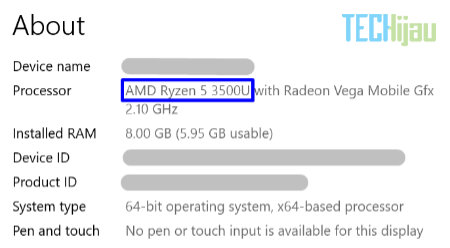
The leading digit “8” in the Intel Core i3-8130U indicates the generation. This means it is an 8th Generation Intel Core i3. Meanwhile, the “3” in the AMD Ryzen 5-3500U shows that it belongs to the AMD Ryzen 3000 series. Yep, it’s that easy.
So, if you see a laptop with an Intel Core i3-6006U, that’s a 6th Gen Intel Core processor. Or if you see a laptop with an AMD Ryzen 5-4500U, that’s an AMD 4000 Series processor.
Furthermore, the letter at the very end of the series number indicates the “power type” of the processor. In the examples above, all of them end with a “U”. This stands for “Ultra Low Power” (ultra-efficient). You’ll usually find these in mainstream and premium laptops. They’re designed this way so the laptop’s battery doesn’t drain too quickly.
Even though they’re called “Ultra Low Power,” they still handle light tasks perfectly well and offer fast loading times. They’re a great fit for office workers or everyday activities that don’t require heaps of power.
On the other hand, high-performance processors will have an “H” suffix, which stands for “High Performance”. These chips are typically used for gaming or heavy-duty editing that requires visual effects or 3D rendering, like running Adobe After Effects or Blender.
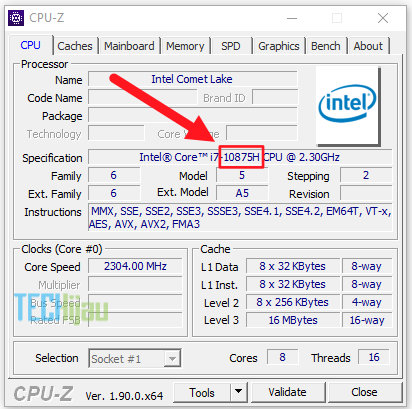
In a laptop, you’ll mostly find these “H” types in gaming laptops. The trade-off, of course, is that the battery won’t last nearly as long. I’ve covered this more in my post about the differences between gaming laptops vs. regular laptops.
What about Intel Core (without “i”) and Intel Core Ultra?
Currently, we’re also being introduced to Intel’s latest processor range: the Intel Core (without the ‘i’) and the Intel Core Ultra. These chips are the official successors to the classic Intel Core i series, which is now pretty much a thing of the past. I’ve already broken down everything you need to know about these new processors in my other post: The Difference Between Intel Core vs Intel Core i vs Intel Core Ultra.
How to Check Your Processor Generation on Your Own PC or Laptop
If you already own a PC or laptop and want to see what’s under the hood, it’s a breeze. If you’re running Windows 10, just go to the search bar (next to the Windows icon in the bottom left corner) and type in “Device Specification”. Click on that, and your laptop will display the name and model of the processor you’re using.
Pretty easy, right? I hope this helps you out! 🙂